
You can record damage after an incident, at the end of a lease or when a vehicle changes drivers. Each damage case links the asset and employee to the relevant details, documents and costs.
Open the damage overviewIn the left-hand menu, go to Servicing → Damages.
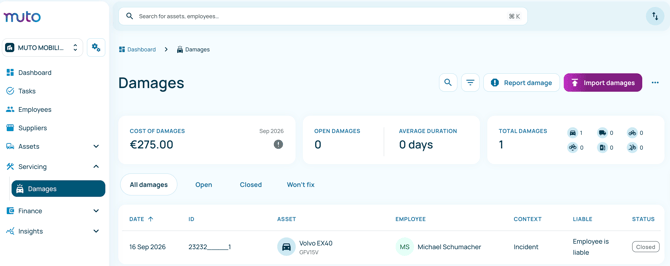
The overview lists your damage cases, including the date, internal reference, asset, employee, damage context, liability and status.
The summary cards at the top show:
- Damage costs for the month shown.
- The number of open cases and the average time it takes to close a case.
- The total number of cases, broken down by asset type.
Use the All damages, Open, Closed and Do not repair tabs to view cases by status. Use the search and filter buttons to narrow the results, for example by supplier.
You can also find linked cases on the Damages tab of an asset or employee record, or through Muto’s global search.
Report damageIn the damage overview, click Report damage. The form has two steps: Asset and context and Details.
Step 1 — Select the asset and context
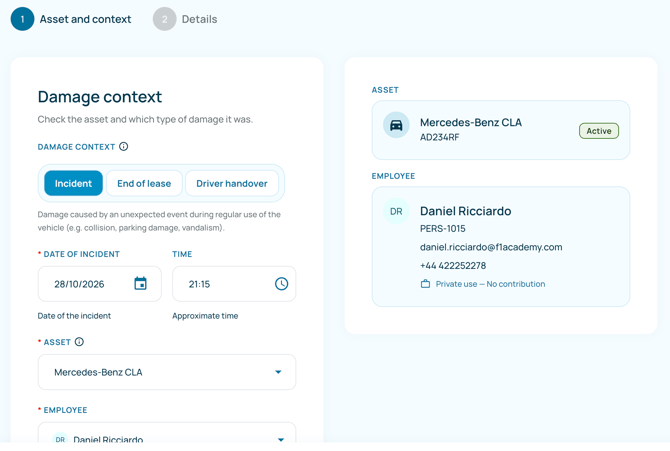
Choose the context that best describes when the damage occurred or was discovered.
| Context | When to use it |
|---|---|
| Incident | An unexpected event causes damage during normal use, such as a collision, parking damage or vandalism. |
| End of lease | Damage is discovered when the vehicle is returned at the end of its lease. |
| Driver change | Damage is discovered when the vehicle is handed over from one driver to another. |
- Enter the incident date and, if known, the approximate time.
- Select the asset.
- Check the employee linked to the case and change the selection if needed.
- Continue to Details.
Muto uses the asset and the date of the damage to suggest the employee the asset was assigned to on that date. The asset may have a different user today.
Tip: Check the asset and employee summary on the right before continuing.
Step 2 — Enter the damage details
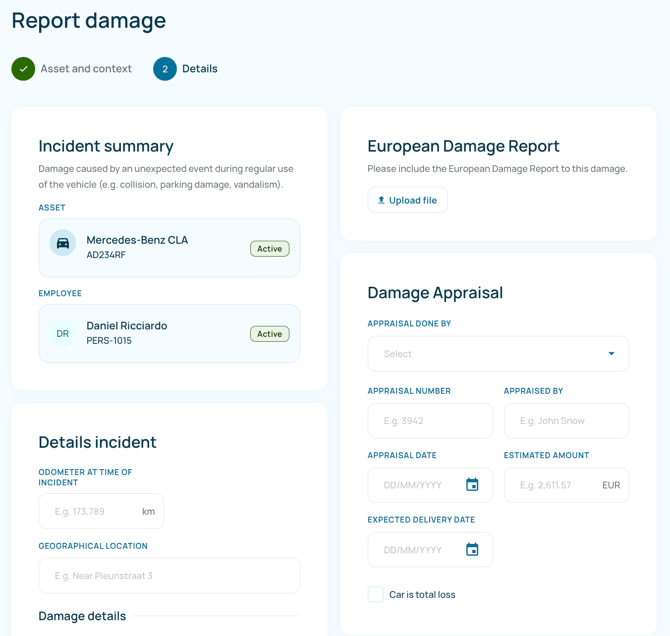
Enter the relevant details. An asterisk (*) marks a required field.
For an incident, the form includes the following fields:
| Field | What to enter |
|---|---|
| Odometer reading at the time of the incident | The odometer reading when the incident occurred. |
| Geographical location | Where the incident occurred, such as a street or address. |
| Date reported | The date the damage was reported. |
| Internal number | Your unique reference for the case. |
| Damage category | The type of damage. |
| Location of damage | The part of the asset that was damaged. |
| Third party involved | Whether another party was involved. |
| Police report | Whether a police report was filed. |
| Liability | Who is liable for the damage. |
| Comments | Additional details about the circumstances or the damage. |
Geographical location identifies where the incident happened. Location of damage identifies the damaged part of the asset.
The available fields depend on the context. End of lease and Driver change use a shorter form that omits incident-specific questions about third parties and police reports.
Add documents, assessment details and contract informationYou can add supporting information while reporting the damage.
European Accident Statement
For an incident, select Upload file in the European Accident Statement section to attach the completed form.
Damage assessment
If the damage has been assessed, enter the available details:
- Assessed by: the supplier that carried out the assessment.
- Assessment number: the assessment reference.
- Assessor’s name: the person who assessed the damage.
- Assessment date: the date the assessment took place.
- Estimated amount: the estimated cost.
- Expected delivery date: when you expect the vehicle to be available again or the repairs to be complete.
Select Vehicle is a total loss if applicable.
Contract details
Enter the insurance or leasing company that provides cover and the corresponding contract or policy number.
Record damage costsUnder Amounts, select the currency and enter the relevant costs.
| Field | Description |
|---|---|
| Repair costs | Direct costs of repairing your own vehicle or asset, such as parts, labour or bodywork. |
| Other costs | Additional costs, such as towing, storage, a replacement vehicle or administration fees. |
| Total cost of own damage | Muto automatically adds the repair costs and other costs to calculate this total. |
| Contractual compensation | The amount the insurance or leasing company covers under the contract, excluding third-party liability payments. |
Depending on the damage context and liability, additional cost fields may appear for third-party liability, the insurance excess, amounts recovered or payroll deductions.
Save the case once you have completed all required fields.
Follow up on a damage caseOpen a case to review and update it as the work progresses. The case page has five tabs:
- Overview: a summary of the case, the assessment and who bears the costs.
- Details: the recorded damage details and costs.
- Notes: additional notes about the case.
- Files: supporting documents and attachments.
- Activity: a history of changes.
For example, you can add an assessment when it becomes available, enter the final repair costs or attach additional documents.
Change the status
New cases start with the status Open. Update the status manually as the case progresses.
| Status | When to use it |
|---|---|
| Open | The case still needs follow-up. |
| Closed | The case is complete. |
| Do not repair | The damage has been assessed and a decision has been made to leave it unrepaired. |
Tip: Check the costs and supporting information before closing a case so the record is complete for future reference.
Export and import damage casesYou can export damage data from the damage overview.
Click Import damages to import cases with Smart Import.