
What Automated Communication does
When a supported event happens in Muto (such as an assignment change), Muto can automatically email:
- Suppliers: for example leasing companies or insurers linked to the asset
- Internal team: colleagues you add as internal recipients
- BCC: addresses that receive a hidden copy of every outgoing email
Each group is configured separately. You can notify suppliers without notifying your internal team, or the other way around.
All triggers are disabled by default. Nothing is sent until you switch a trigger on.
Prerequisites: Before enabling any trigger, make sure every supplier that should receive notifications has at least one communication email address added (Step 1), and that you have configured your internal recipients if internal notifications are needed (Step 3).
How to Set It Up
(Full guide and Q&A below the video.)
1. Add communication emails to your suppliers
Automated emails are sent to the communication emails field on the supplier, not to the main supplier email.
- Go to Suppliers - Click on the supplier - Click on Edit
- Add one or more email addresses. Multiple addresses per supplier are supported.
- Save.
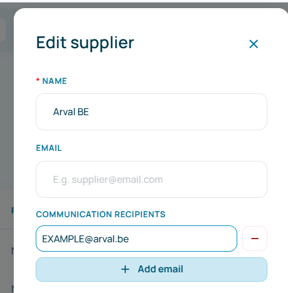
Repeat this for every supplier that should be notified.
The main supplier email and communication email fields are separate. Automated messages are sent only to communication email addresses, so completing the main email field alone is not sufficient.
2. Open Automated communication
- Go to Settings.
- Open Automated communication.
You will see two tabs:
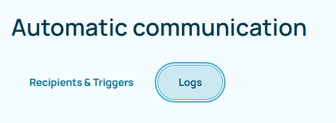
- Recipients & triggers — who gets emails, and for which events
- Communication logs — what was queued, sent, or cancelled
3. Add internal recipients and BCC
On Recipients & triggers:
- Add the internal team email addresses that should be notified.
- Optionally add BCC addresses.
All internal recipients receive the same notifications when an internal trigger is enabled. You cannot currently assign different events to specific people or roles—for example, employee updates to HR and assignment changes to Fleet.
4. Choose which events send an email
On each trigger row, enable the events you want for suppliers and/or internal team.
Typical events include:
- Assignment started — a new assignment is created, or its start date is updated
- Assignment stopped — an assignment end date is added or changed
- Assignment or driver details updated — key assignment or driver information changes
- Employee contact changes — address, email, phone, or language is updated
- Asset archived — an asset is archived
The list on your screen reflects all events Muto currently supports. Enable only the events you want to trigger.
Use the menu on each trigger row for extra options, including email preview and contract type filters.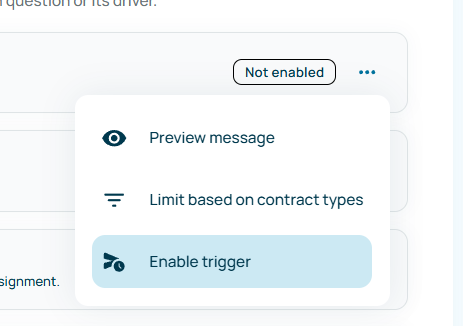
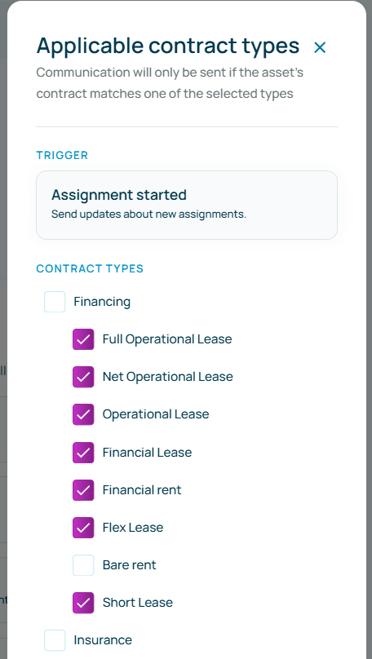
5. (Suppliers) Limit emails by contract type
For supplier triggers, you can restrict emails to certain contract types — for example only Full Operational Lease contracts under Financing.
That way a supplier only receives events that are relevant to them, instead of every assignment in your fleet.
6. Preview the email (read-only)
Open the preview from the trigger row menu to see the standard message for that event.
The preview is read-only. You cannot edit the subject, greeting, or body in this version.
7. Enable the trigger
When recipients and (if needed) contract type filters look correct, enable the trigger.
From that moment, matching events in Muto will queue an email automatically.
For a controlled rollout, start with one supplier and one trigger, such as Assignment started. Check the Communication log, then enable the remaining triggers.
Note: If you later need to disable a trigger, use the same toggle on the trigger row to turn it off. Disabling a trigger does not affect emails that are already queued or sent.
Follow what was sent: Communication logs
Open the Communication logs tab to see every automated email that was queued, sent, or cancelled.
Each row typically shows:
- Recipient and supplier
- The event that triggered the email
- The related asset and employee
- Status and send time (or Pending / Canceled)
You can:
- Search by recipient email
- Filter by status: Pending, Sent, or Canceled
Cancel an email that should not go out
When an event occurs, the email is first queued. You have a short window (60 seconds) to cancel it before it is sent.
- Open Communication logs.
- Find the Pending row.
- Choose Cancel sending and confirm.
Only pending emails can be cancelled. Emails that are already sent cannot be pulled back.
What it cannot do (today)
- Edit the email body, greeting, or subject in the UI
- Attach PDFs or other documents to automated emails
- Use a custom sender address (emails are sent from
no-reply@mutomobility.com; replies to this address are not monitored) - Let each internal colleague pick different events — the internal list receives the same notifications
- Sort columns in the communication log
- Cancel an email after it has been sent
- Replace every kind of supplier communication (documents, exceptions, and ad-hoc messages stay manual)
Frequently asked questions
We already send these emails from Outlook. Why use this?
Muto sends the right notification when an event occurs, so your team does not have to remember to send an email. The communication log also shows what was sent, to whom, and when.
Can we customise the email templates?
Not in this version. Email templates cannot currently be edited. Check the Muto release notes for updates.
Can we send the emails in Dutch or French?
Automated emails are sent in the language configured on the supplier record. Muto currently supports English (EN), Dutch (NL), and French (FR) for automated communications. The language is determined by the setting on each supplier record. Check the Muto release notes for the latest list of supported languages.
Who receives the email — the main supplier email or the communication emails?
Only communication emails on the supplier record. You can add several addresses per supplier.
What if a supplier has no email address?
If a supplier has no communication email, Muto displays “No email” so you can update the supplier before enabling the trigger. The missing address is clearly visible, so the notification will not fail silently.
What if we don’t want every supplier to get every notification?
Use contract type filters on each supplier trigger (Step 5) to restrict which events each supplier receives. Suppliers only receive notifications for the triggers you enable.
Do internal colleagues also get every notification?
Internal recipients use a single shared list. When an internal trigger is enabled, everyone on the list receives that notification. You cannot currently assign different events to specific roles, such as Fleet, HR, or Finance.
How do we know an email was actually sent?
Open Communication logs to confirm whether an email is pending, sent, or cancelled.
What if someone makes a mistake?
If an automated email should not be sent, open Communication logs immediately and cancel it while it is pending. You have 60 seconds to do so; once the email is sent, it cannot be cancelled.
Will these emails end up in spam?
Automated emails are sent from no-reply@mutomobility.com. To help prevent filtering, ask suppliers and your IT team to allowlist this address for supplier, internal, and BCC notifications.
Can a driver or employee receive these emails?
Automated emails are intended for suppliers and configured internal recipients. They cannot be sent automatically to drivers or employees as individual recipients.