
Use Asset Planner to see which assets can be assigned on a specific date and how long they are available.
Opening Asset PlannerYou can open Asset Planner in two ways:
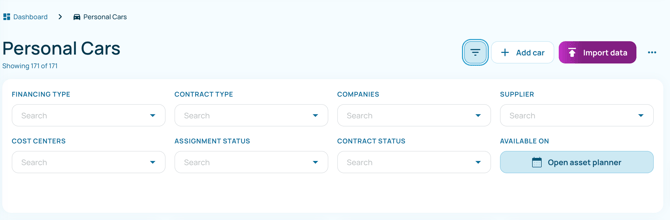
- From an asset overview: open the filters, find Available on and click Open asset planner. The asset type from your overview is preselected.
Choosing a reference date
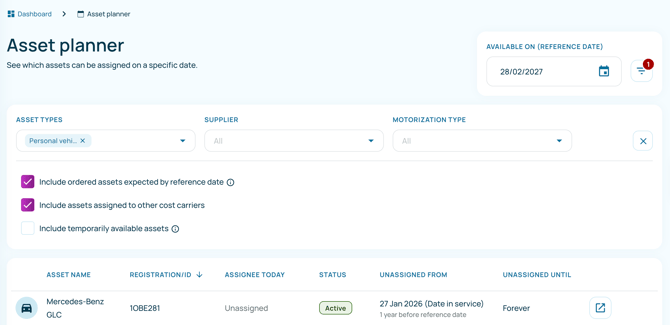
In Available on (reference date), select the date for which you want to check availability. You can also use a date preset, such as tomorrow or the end of the week.
The results show assets that match your selected date and filters.
Example: A new employee starts next month. Select their start date to find assets that will be available when they join.
Filtering your resultsUse the filter button next to the reference date to access the available filters.
You can narrow your results by:
- Asset types
- Supplier
- Motorization type
You can also choose which assets to include:
| Option | What it includes |
|---|---|
| Include ordered assets expected by reference date | Ordered assets expected to arrive by the selected date. |
| Include assets assigned to other cost carriers | Assets assigned to other cost carriers, such as a location or cost center. |
| Include temporarily available assets | Assets available on the selected date that have another assignment scheduled later. |
Tip: If you need a temporary replacement, include temporarily available assets and check the Unassigned until column to see whether the available period meets your needs.
Understanding the resultsThe results table shows the following information for each asset:
| Column | Description |
|---|---|
| Asset name | The name of the asset. |
| Registration/ID | The asset’s registration number or identifier. |
| Assignee today | The current assignee, or Unassigned if the asset has no current assignment. |
| Status | The asset’s status, such as Active or Ordered. |
| Unassigned from | The start of the period in which the asset is unassigned. |
| Unassigned until | The end of that period. Forever indicates that no end is currently shown. |
Assignee today refers to the current situation, even when you select a future reference date. Check Unassigned from and Unassigned until to understand availability for your planned assignment.
For ordered assets, keep the expected arrival date in mind when planning.
Assigning an assetOnce you’ve found a suitable asset, follow the steps in Assigning assets to an employee to create the assignment.
Check that the intended assignment fits within the asset’s available period, especially when using a temporarily available asset.
No results displayedIf the table is empty:
- Check your reference date.
- Review your asset type, supplier and motorization type filters.
- Check whether you need to include ordered or temporarily available assets.