---
title: Custom Export
description: Custom Export lets you select the data you need and use it for one-off analysis or recurring reporting. For example, you can monitor contract updates, newly activated or archived cars, and changes to employee cost centers.
---
[Skip to content](https://help.mutomobility.com/knowledge-base/custom-export#main-content)
English
Show submenu for translations

- [Solutions](https://mutomobility.com/en/solutions/)
- [Product](https://mutomobility.com/en/product/)
- [Prices](https://mutomobility.com/en/prices/)
- [Support](https://mutomobility.com/en/support/)
- [Contact](https://mutomobility.com/en/contact/)
- [Blog](https://blog.mutomobility.com/en)
- [Jobs](https://careers.mutomobility.com/work-at-muto)
Open main navigation
Close main navigation
- [Solutions](https://mutomobility.com/en/solutions/)
- [Product](https://mutomobility.com/en/product/)
- [Prices](https://mutomobility.com/en/prices/)
- [Support](https://mutomobility.com/en/support/)
- [Contact](https://mutomobility.com/en/contact/)
- [Blog](https://blog.mutomobility.com/en)
- [Jobs](https://careers.mutomobility.com/work-at-muto)
- English
Show submenu for translations
- [Contact us](https://mutomobility.com/en/contact/)
[Contact us](https://mutomobility.com/en/contact/)
How can we help you?
- There are no suggestions because the search field is empty.
1. [Muto Mobility Knowledge base](https://help.mutomobility.com/knowledge-base?hsLang=en)
2. [Settings](https://help.mutomobility.com/knowledge-base/settings?hsLang=en)
# Custom Export
## Custom Export lets you select the data you need and use it for one-off analysis or recurring reporting. For example, you can monitor contract updates, newly activated or archived cars, and changes to employee cost centers.
### How to create a custom export
1. Click on Settings -\> Import & Export
2. Open **Custom Export**.
3. Select the **type of data** you want to report on, such as cars, contracts, or employees.
4. Choose the **fields** you want to include.
5. Apply any relevant **filters or date** ranges.
6. **Export** the data for further analysis.
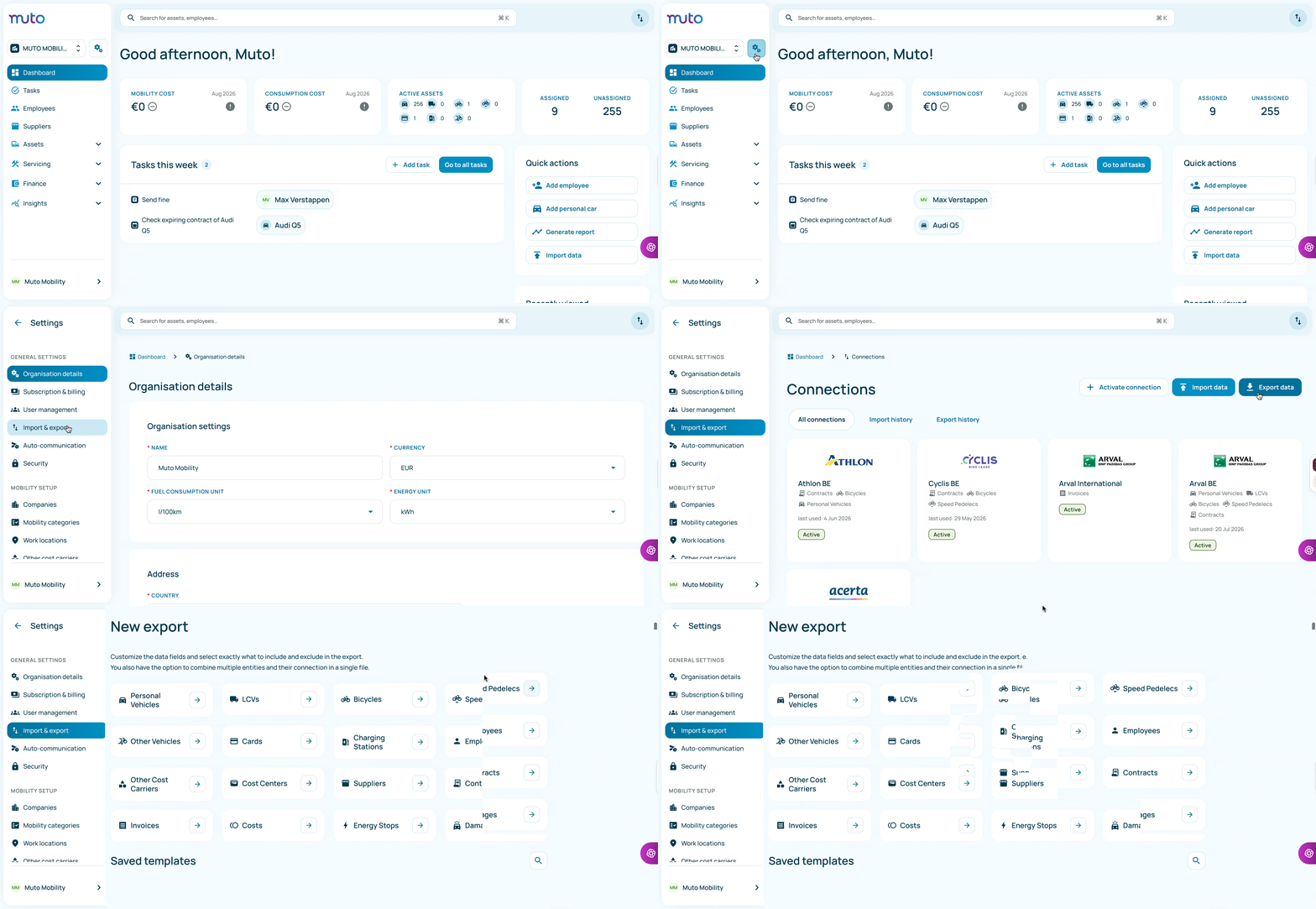
For recurring reporting, save your custom export as a template using the same fields and filters each time. You can then download that template again for each reporting period. The export will include the latest available data at the time you run it, so you can use the same setup when a new month begins.
---
### **Reporting examples**
#### Contract changes
Use a recurring export to identify changes to contract details, such as:
- Contract duration
- Lease amount
- Contracted kilometres
- Contract start or end date
Recommended fields include:
- Contract ID
- Car ID or license plate
- Employee ID
- Contract start and end dates
- Contract duration
- Lease amount
- Contracted kilometres
Match records using the contract ID, then compare the relevant values with the previous export.
---
#### Newly activated cars
To report on cars activated during a particular month, include:
- Car ID
- License plate
- Car status
- Activation date
- Make and model
- Assigned employee or cost center
Filter the activation date to the reporting month. To track month-over-month performance, compare the number of activated cars with the previous month.
---
#### Newly archived cars
To identify cars archived during the reporting month, include:
- Car ID
- License plate
- Car status
- Archive date
- Assigned employee or cost center
Filter the archive date to the relevant month. If an archive date is not available, compare consecutive exports and identify cars whose status changed to **Archived**.
---
#### Employee cost center changes
To monitor changes to employee cost centers, include:
- Employee ID
- Employee name
- Email address
- Cost center
- Company or department
Match employees using their employee ID and compare the current cost center with the previous month’s export.
---
### Frequently Asked Questions (FAQ):
**Q: What file formats are supported for Custom Exports?**
**A:** You can export data in **Excel (**`.xlsx`) and **CSV (**`.csv`) formats. Excel is recommended for quick formatting and pivot tables, while CSV is ideal for importing into external payroll, ERP, or BI tools.
**Q: Can I save my export settings so I don't have to rebuild them every month?**
**A:** Yes. Once you configure your entities, columns, and default filters, click **Save as Template** at the top right of the screen. Give it a descriptive name (e.g., *"MoM Fleet Activations"* or *"Monthly Cost Center Changes"*). Your saved templates will be accessible directly from the Custom Export dashboard.
**Q: How up to date is the data in Custom Export?**
**A:** Custom Export pulls live data directly from the system. Any status change, new assignment, or contract update saved in the platform is immediately available in your export.
**Q: How can I run Month-over-Month (MoM) comparisons?**
**A:** Use the date range filters on audit or event fields:
- For **new activations / deliveries**: Filter by `Delivery Date` or `Creation Date` within the previous calendar month.
- For **offboarded / archived assets**: Filter by `Archived Date` or `Return Date` within the target month.
- For **contract or employee changes**: Filter by `Last Modified Date` within the selected period.
To make side-by-side analysis seamless, keep the column order identical across monthly runs so you can easily compare sheets using Excel formulas (like `VLOOKUP` or `XLOOKUP`).
**Q: Can I combine multiple entities (e.g., Drivers, Vehicles, and Contracts) into a single export?**
**A:** Yes. When building your export, select your primary entity (e.g., *Vehicles*), then use the **Connect Related Entities** option to include fields from related entities such as *Employees (Driver)*, *Contracts*, and *Cost Centers*.
**Q: Why are some fields blank in my exported file?**
**A:** A field appears blank if the information has not been recorded in the platform (e.g., an unassigned vehicle will not have driver or cost center details, or a contract without an excess mileage rate recorded will show that cell as empty).
- [Getting started](https://help.mutomobility.com/knowledge-base/getting-started?hsLang=en)
- [Tasks](https://help.mutomobility.com/knowledge-base/tasks?hsLang=en)
- [Employees](https://help.mutomobility.com/knowledge-base/employees?hsLang=en)
- [Suppliers](https://help.mutomobility.com/knowledge-base/suppliers?hsLang=en)
- [Assets](https://help.mutomobility.com/knowledge-base/assets?hsLang=en)
- [Finance](https://help.mutomobility.com/knowledge-base/finance?hsLang=en#main-content)
- [Contracts](https://help.mutomobility.com/knowledge-base/finance?hsLang=en#contracts)
- [Invoices](https://help.mutomobility.com/knowledge-base/finance?hsLang=en#invoices)
- [Insights](https://help.mutomobility.com/knowledge-base/insights?hsLang=en#main-content)
- [Analytics](https://help.mutomobility.com/knowledge-base/insights?hsLang=en#analytics)
- [Reports](https://help.mutomobility.com/knowledge-base/insights?hsLang=en#reports)
- [Settings](https://help.mutomobility.com/knowledge-base/settings?hsLang=en)
- [FAQs](https://help.mutomobility.com/knowledge-base/faqs?hsLang=en)
- [Product Updates](https://help.mutomobility.com/knowledge-base/product-updates?hsLang=en)
[](http://mutomobility.com)
[mailto:email@email.com](mailto:email@email.com)
Copyright © 2025, Muto Mobility